Case study

Keeping a client’s contacts in sync across Google and Outlook.

A WhatsApp assistant that adds contacts to Google Contacts and Microsoft Outlook from a photo of a business card, and finds differences between the two. The client approves every change before it’s saved.

Built for
A client
Works in
WhatsApp
Connects
Google Contacts and Microsoft Outlook
Screenshots
A demo with the founder’s business card, and synthetic test contacts. Personal details are blurred.
1 / 6
The problem

Every new contact had to be typed in twice.

A client kept contacts in both Google Contacts and Microsoft Outlook, so every new business card had to be entered manually in each account.

Over time the two lists stopped matching. A job title would change in one but not the other, or an email would be saved in only one, and it wasn’t always clear which version was right.

Google Contacts
Jennifer ParkExecutive Director
Kevin NakamuraNo emailMissing
Outlook
Jennifer ParkProgram ManagerDiffers
Kevin NakamuraEmail on file

Illustration. The names and details come from the synthetic test data.
The solution

Send a photo, approve it, and it’s saved to both.

The assistant runs in WhatsApp, so there’s no new app to learn. It reads the card, checks whether the person is already in either address book, and asks before saving anything.

  1. Send a photo

    A picture of the business card, taken on the phone.

  2. Review

    The assistant lists what it read and anything that looks off.

  3. Approve

    Nothing is saved until the client replies yes.

  4. Saved in both

    The contact is added to Google Contacts and Outlook.

How it works

A new contact takes one photo and one reply.

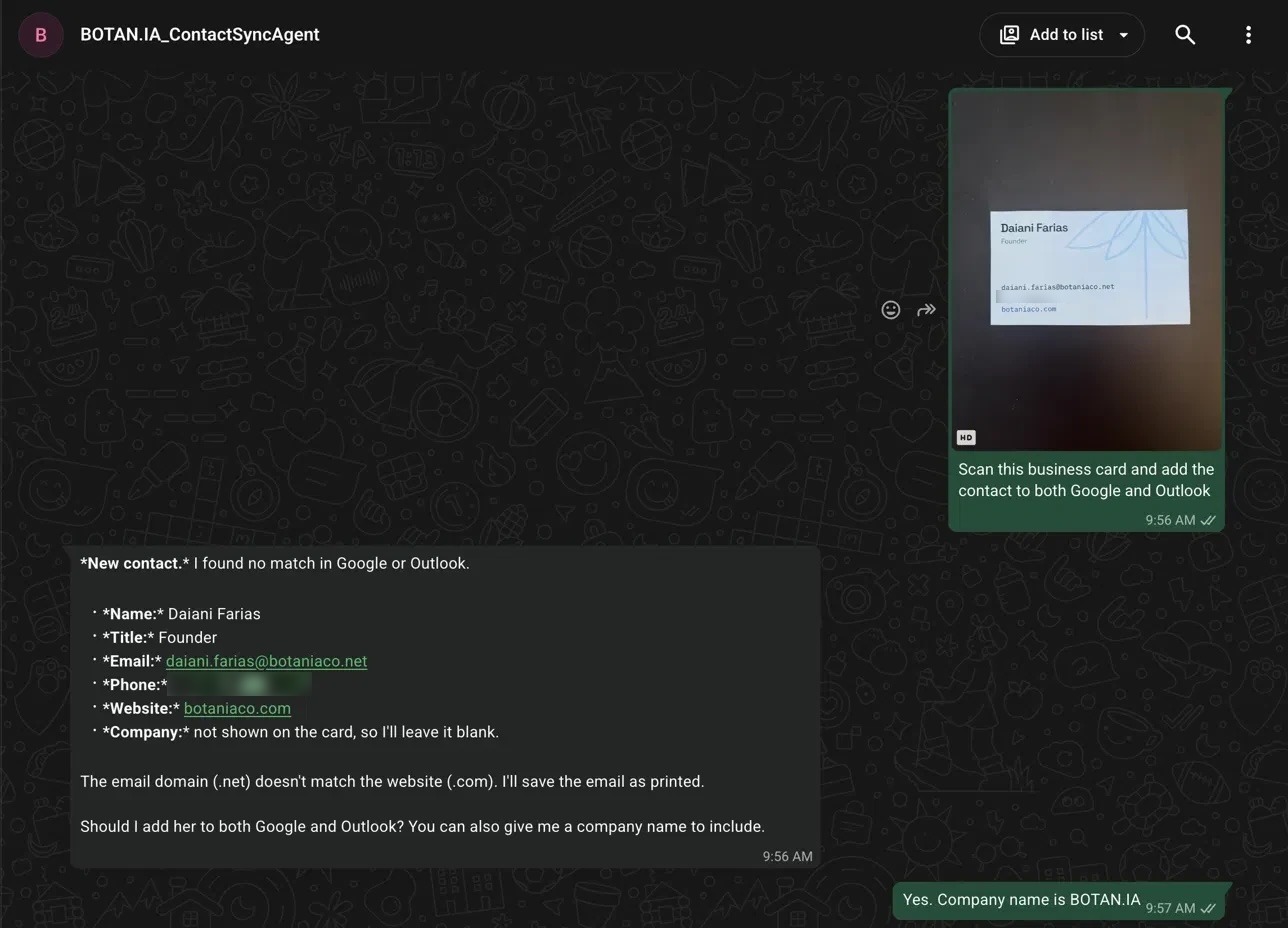
The client sends a photo of the card. The assistant replies with the details it read and asks before saving them.

Photo
The card, sent with a one-line request.
Review
Name, title, email, phone and website, plus a note that the email ends in .net while the website ends in .com.
Approve
The client says yes and adds the company name.
A WhatsApp conversation. A photo of a business card is sent with a request to add the contact to Google and Outlook. The assistant replies with the name, title, email, phone and website it read, notes that the email domain differs from the website, and asks whether to add the contact to both. The reply says yes and gives the company name. The phone number is blurred. PhotoReviewApprove
A demo using the founder’s own business card. Phone number blurred. View full size (opens in a new tab)
After saving

Then it reports what was saved where.

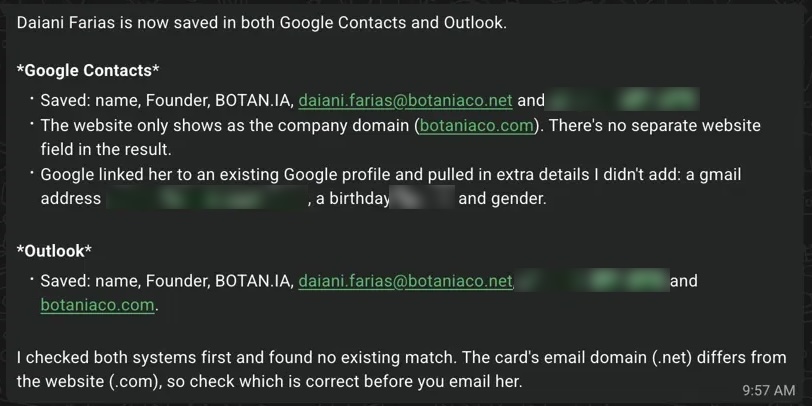
The confirmation lists the details saved in Google Contacts and in Outlook. It also mentions extra details Google pulled in from an existing profile, which the assistant didn’t add, and repeats the reminder to check the email domain.

The assistant’s confirmation that the contact is saved in both Google Contacts and Outlook, listing the fields saved in each, noting extra details Google linked from an existing profile, and reminding the reader to check the email domain. The phone number, personal email address and birthday are blurred. Google ContactsOutlook
The assistant’s confirmation after saving. Phone number, personal email address and birthday blurred. View full size (opens in a new tab)
Existing contacts

Updates wait for a yes, then get checked.

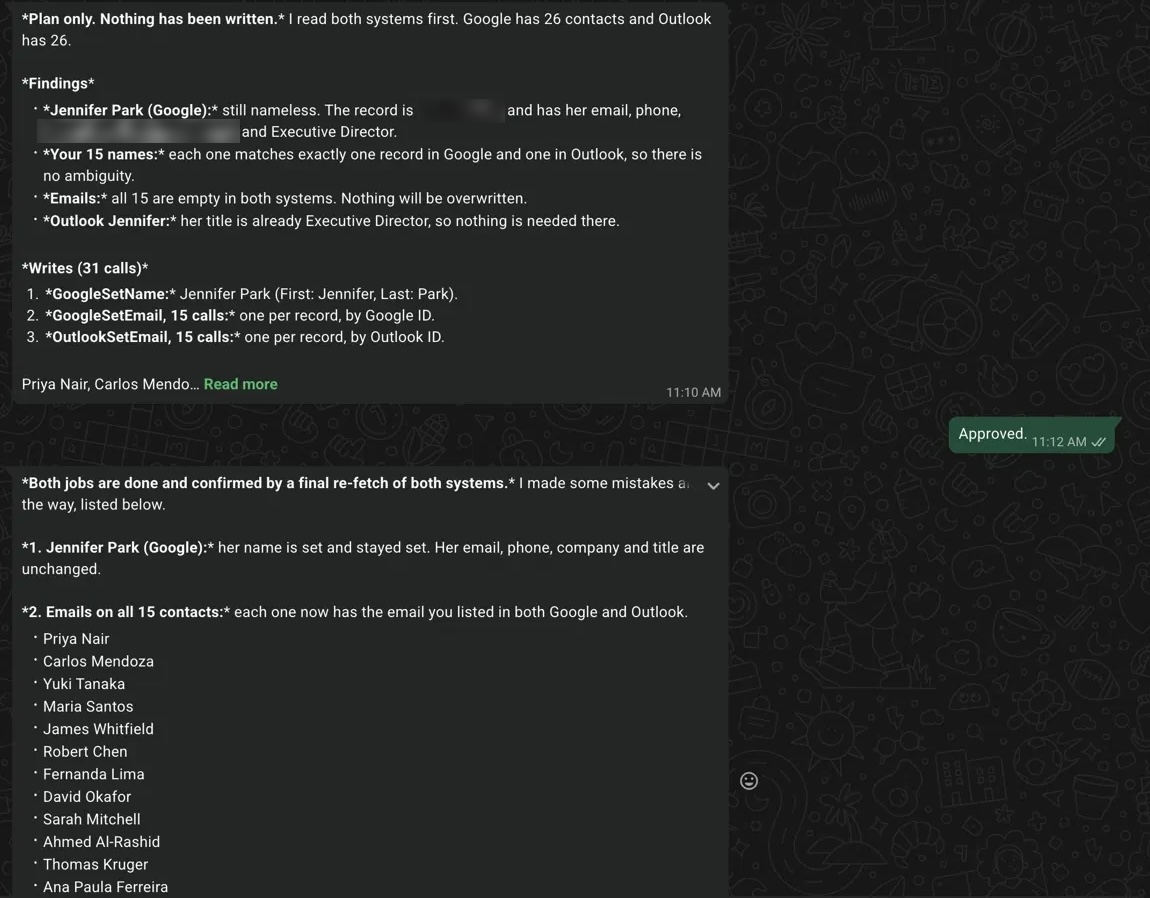
The assistant can also compare the two address books and find missing or conflicting details. Before changing anything, it reads both, lists the changes it plans to make, and waits. After approval, it reads both again and reports what actually changed.

One lesson from testing: a general-purpose update tool erased fields it hadn’t been asked to touch. We replaced it with smaller tools that each change a single field, such as an email address or a phone number.

Proposed
The plan, before anything is written.
Approved
A one-word reply from a person.
Checked
Both address books read again to confirm the changes.
A WhatsApp conversation on synthetic test contacts. The assistant posts a plan that says nothing has been written yet, with its findings and the changes it proposes. The reply says Approved. The assistant then reports that both jobs are done and confirmed by reading both systems again, and lists the contacts it updated. A record ID and an organization name are blurred. ProposedApprovedChecked
A test run on synthetic contacts. Record ID and organization name blurred. View full size (opens in a new tab)
Test result

Final test: 26 contacts in each address book.

The test used synthetic contacts, not real ones. After the last run, the assistant reported no duplicates and no blank records. This shows how the system behaved in testing, not results from everyday use.

Copying the same information between systems by hand?

Let’s talk about connecting them, with you approving each change.

Final test run, synthetic data

Contacts in Google Contacts
26
Contacts in Outlook
26
Duplicates reported
None
Blank records reported
None

Synthetic test data. Not a measure of real-world use.